
For freelancers and people with several jobs
Several clients, each in a room of their own
Notes, deadlines and hours stay in the room they belong to. Change hats saves your place when you move from one job to the next, and the week view shows where your hours are going.
What a room holds
Every client, employer or line of work gets a room with the same tabs, and you can switch any of them on or off and rename them in your own words.
Overview
What is coming up, the active projects, the latest notebook pages and the people you are waiting on.
Tasks
To-dos with due dates, repeats and subtasks, in a list or on a board, with a Waiting group for things other people owe you.
Projects
Bigger pieces of work with a stage, a next step, links and visible progress.
Responsibilities
What you are on the hook for in the job and how often, with the date each one is next due.
Notebook
Numbered, dated pages with templates such as meeting notes, call notes and a client brief.
People and links
The people connected to the job and when you last spoke, and the links and folders you keep reaching for.
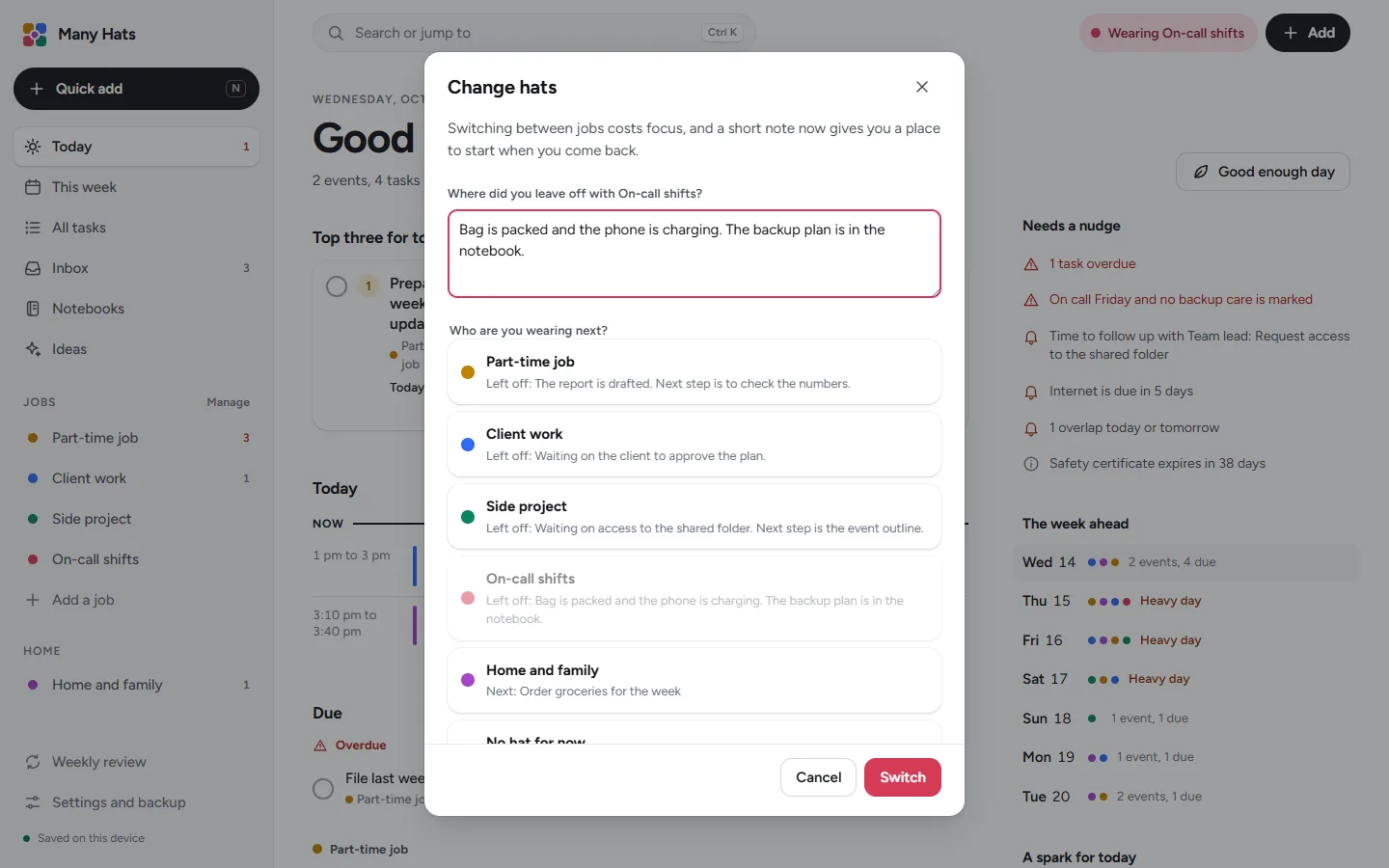
Change hats
Moving between jobs without losing your place
- Press Change hats.
- Write where you left off in the job you are leaving.
- Choose the job to wear next, and the note you left there last time is waiting.
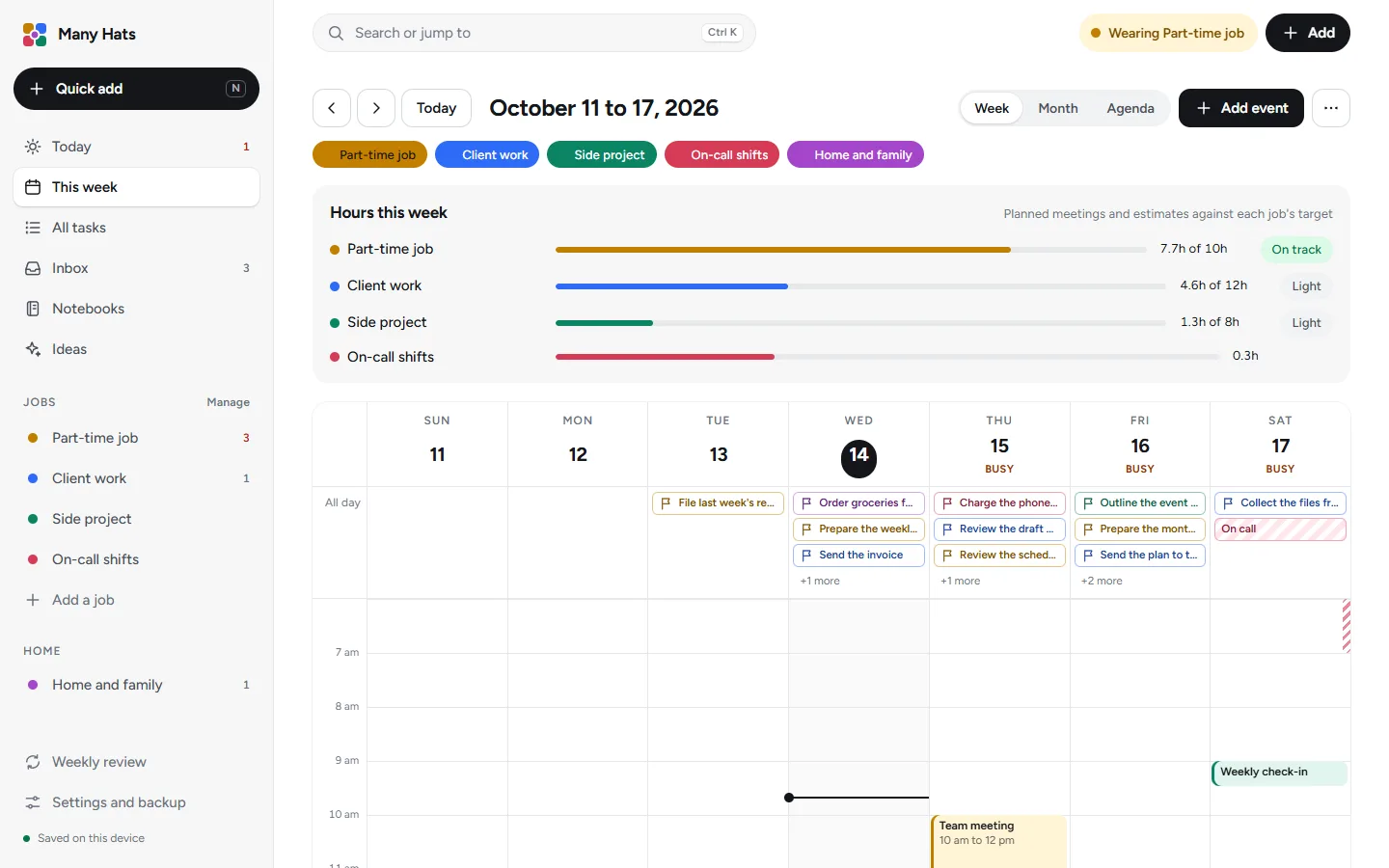
Hours against what you aim for
The Time tab logs your hours, and the week view puts them next to a target for each job.

- A timer and a log, with entries you can mark billable.
- A summary you can copy as text or as a spreadsheet and paste into your own invoice.
- Quiet hours tuck away the heads-up list and the red counts while you are off the clock.
Ideas and plans for the quiet weeks
Each responsibility has a set of ideas written for that kind of work, with a first step you can take.
One button turns an idea into a task or a project, another saves it for later, and Not for me removes it from your suggestions. Playbooks turn a reusable plan, such as a client kickoff week or a launch countdown, into dated tasks from a start date.
Brainstorm with an assistant writes a message you can edit and paste into an AI assistant. It holds the job name, your responsibilities and a few project and idea titles, and it leaves out your notes, tasks, people and calendar.

Good to know
- It doesn't send invoices, however the Time tab writes a summary that you can paste into your own.
- Each account is for one person, and nothing is shared between accounts.
- Your information syncs to each computer and phone you sign in on.
Questions from freelancers
Does it send invoices?
No, the Time tab logs your hours and writes a summary you can copy as text or as a spreadsheet and paste into your own invoice.
Can I change the jobs it starts with?
Yes, you can rename, recolor, reorder, copy, archive or delete any job, rename its tabs and switch any feature on for any job.
Where is my information kept?
A working copy is kept in your browser and synced to your account, where it's encrypted in transit and at rest. How your information is kept has the details.
How do I move to a new device?
Sign in on the new device and your information syncs to it. The help article covers backup files as well.
Start with one client.
Add a job by describing it in a sentence, and the app suggests a setup that you can change before you begin.