Today, the week and quick add
Everything that is due or scheduled, from every job and from home, lands in one place.
Today
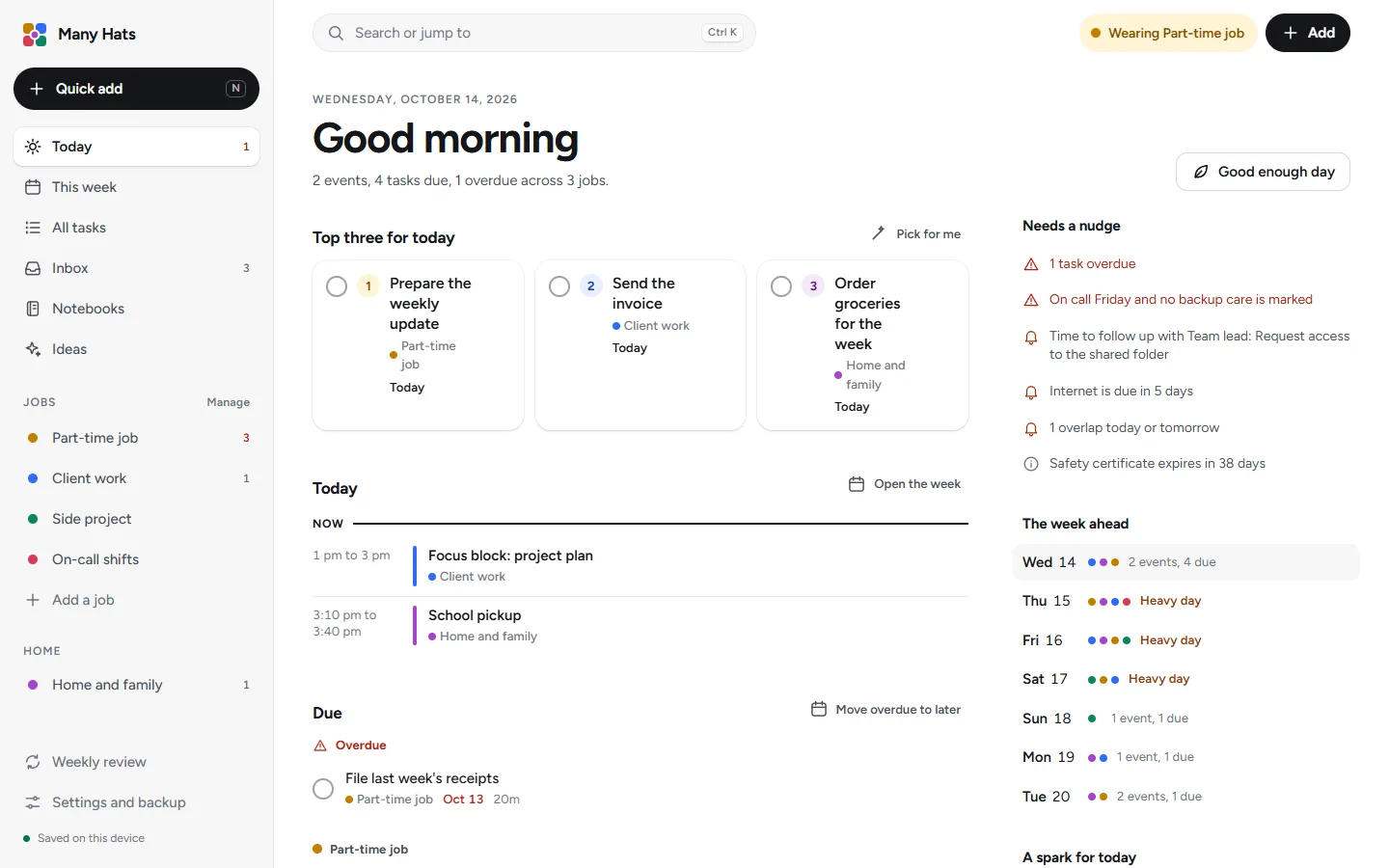
The day's schedule, what is due and overdue, a top three, a list of nudges and a strip of the week ahead, grouped by job and colored to match.
Week, month and agenda
Filter the calendar by job, repeat events, add all-day deadlines and see warnings where two things overlap. On-call time shows as a band, and calendar files import and export.
Quick add
Press N and write what you want the way you'd say it, and Many Hats picks out the job, the date and the time for you to check before you add it.
Search
One search box, opened with Ctrl K or the slash key, finds notes, tasks, projects, ideas, people and links across every job and jumps to any page.
The Inbox
Anything captured without a job waits in the Inbox, where you can turn each line into a task, event, note or idea, or sort them one at a time with the number keys.
Keyboard shortcuts
N opens quick add, Ctrl K opens search and the question mark lists every shortcut.
A room for each job
A job opens to an overview and a row of tabs, in the job's own color.
Overview
What is coming up, the active projects, the latest notebook pages, the regular work and when each piece is next due, the people you are waiting on, and a few fresh ideas.
Tasks
To-dos with due dates, repeats and subtasks, in a list or on a board, with a Waiting group for things other people owe you.
Projects
Bigger pieces of work with a stage, a next step, links and visible progress.
Responsibilities
What you are on the hook for in the job and how often, with the date each one is next due, such as a monthly report or a weekly update.
Schedule
Meetings and commitments for the job, kept beside the rest of its work.
People and links
The people connected to the job and when you last spoke, and the links and folders you keep reaching for.
A notebook for every job
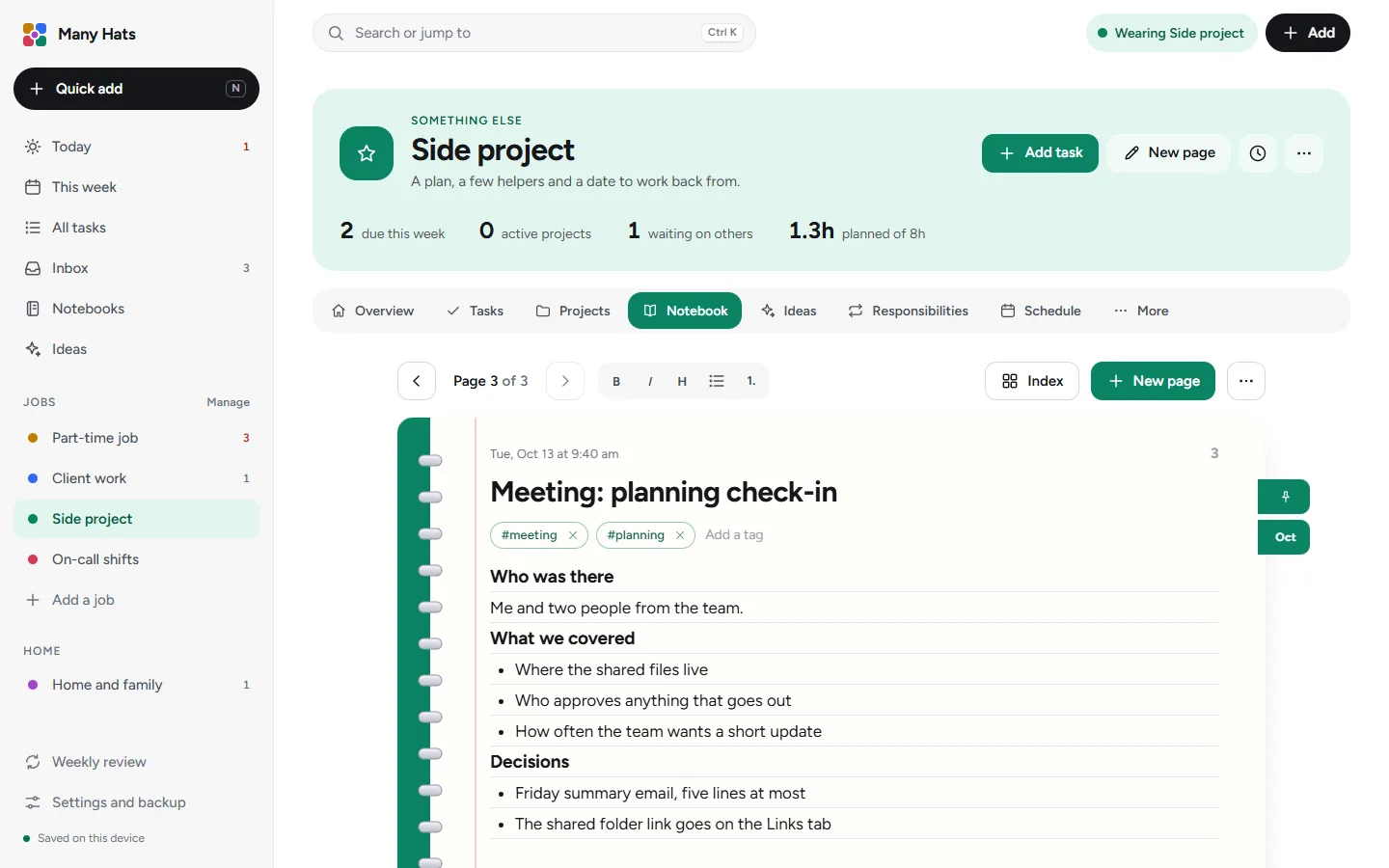
Each job gets numbered, dated pages on ruled paper with a spiral binding.
Templates
Start blank or from meeting notes, call notes, a client brief, a week plan and more, and save any page as a template of your own.
Tags and search
Tag pages with a hash sign, group the index by date or by tag, and search titles, text and tags in one job or across all of them.
Flip, pin and index
Flip with the left and right arrow keys, pin the pages you reach for most and open the index to see them all.
Follow-ups
Meeting and call pages have a Follow-ups list, and one button turns the open ones into tasks.
Meetings and their notes
A meeting on the calendar can link to its notes page.
Client details
Client details belong in the Clients tab.
Ideas written for the work you do
Each responsibility comes with fresh ideas for that kind of work.
A library for each responsibility
Each responsibility has its own set of ideas, written for that kind of work, with a first step you can take.
Make it a task, save it or skip it
One button turns an idea into a task or a project, another saves it for later, and Not for me removes it from your suggestions.
Your own ideas
Add ideas of your own beside the ones that come with the job.
Brainstorm with an assistant
A button writes a message you can edit and paste into an AI assistant. It holds the job name, your responsibilities and, except for on-call and care work, a few project and idea titles. It leaves out your notes, tasks, people and calendar.
A spark for today
One idea each day appears on the Today page.
Shuffle
Shuffle brings up a fresh set when the first ones aren't right.
Tools you switch on where they help
These tabs appear only in the jobs that need them, and any of them can be added to any job.
Content pipeline
A board that moves each piece of work through stages you choose, from the first idea to done, with approval stages where a client signs off.
Playbooks
A reusable plan that turns into dated tasks from a start date, such as a client kickoff week or a launch countdown.
Time
A timer and a log, entries you can mark billable, a weekly hours target and a summary you can copy as text or as a spreadsheet.
Recaps and briefs
A brief to read before a meeting and a monthly recap you can copy into an email to a client.
Learning paths
A guided path through something new, with the next step, why it comes now, how to do it and the big choices laid out side by side.
Any tool, any job
Switch any of these on for any job from Customize, and rename the tab to fit your own words.
Looking after yourself
Tools for the weeks that pile up.
Change hats
Before you switch jobs, the app asks where you left off and shows that note again when you come back.
Top three
Choose up to three tasks from any job as the part that decides your day.
Good enough day
One press trims Today to your top three and a few tasks of fifteen minutes or less.
Energy check-in
Rate the day from Drained to Great, and after three low days in a row the app suggests a lighter week.
Weekly review
Six short steps cover wins, loose ends, waiting, the week ahead, protecting rest and closing the week, and you can skip any of them.
Hours and quiet hours
A bar for each job compares planned hours with your weekly target, and quiet hours tuck away the heads-up list and the red counts while you are off the clock.
On call, clients and skills
For work in shifts that can start at any hour.
On call
Add an on-call stretch with a start, an end, a repeat and whether a backup is arranged and who is covering. The page shows when you are next on call and flags a stretch with no backup or an overlap.
Prep and recovery plans
A prep plan for each stretch and a three day recovery plan called After a long night.
Client notes
The Clients tab keeps a key date, a status, a general area and notes for each client you support under initials or a code, with a private work log beside it.
Skills and training
Skills with a level from Not started to Confident, and a review mode that steps through the ones you pin.
Certificates
Expiry dates with a renewal plan, shown on Today when one is close.
A home space beside your jobs
A space for the household, in its own color, in the same menu as your jobs.
Meals and groceries
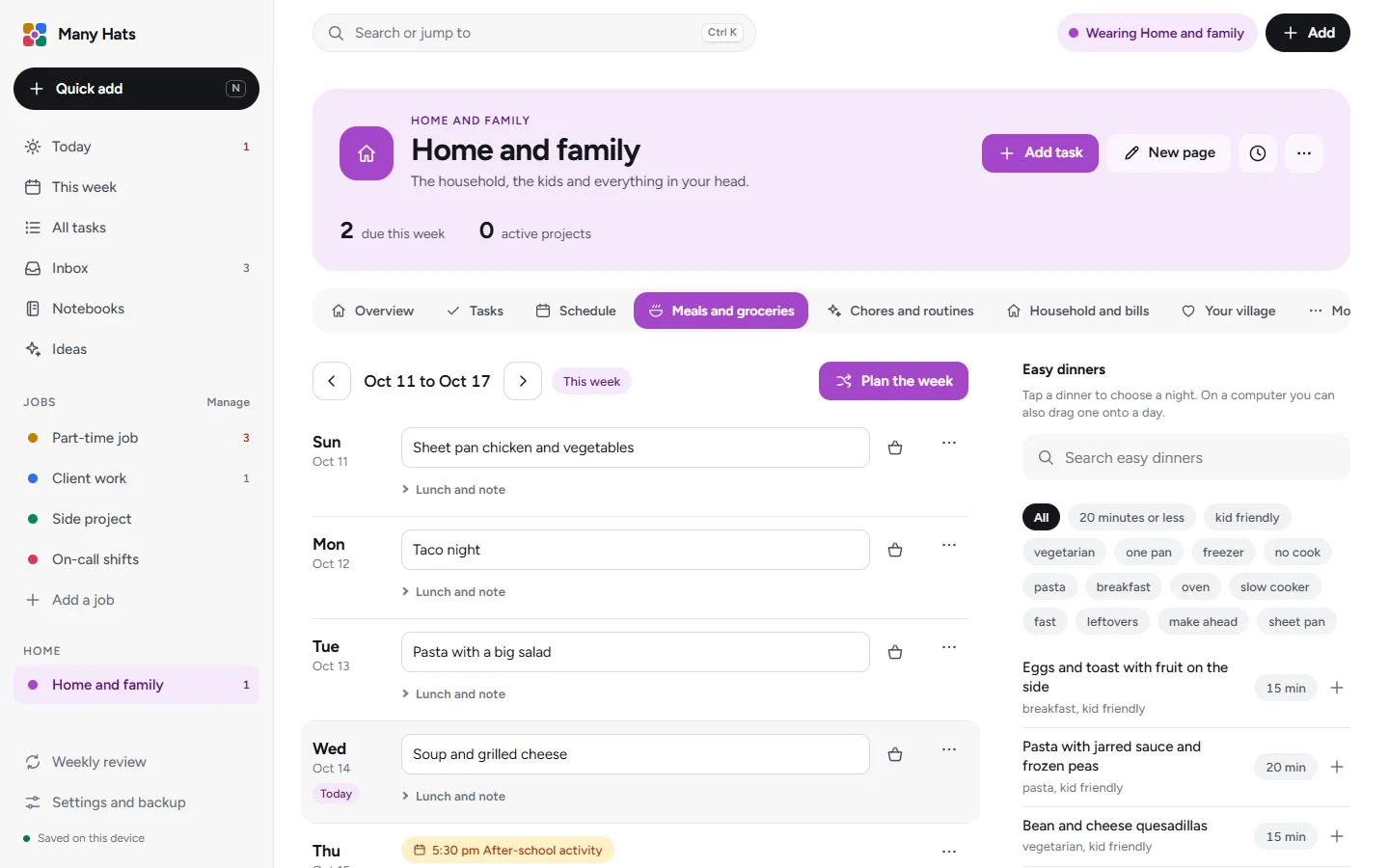
A dinner for every night, easy dinners to pick from, a Plan the week button, and a basket button that adds a dinner's ingredients to a grocery list you can copy as text.
Chores and routines
Starter chores for four age ranges that you can give to the people in your household, each with its own repeat, plus routines you tick through each day.
Household and bills
The people in your home, bills with due dates that move to the next one when you mark them paid, and birthdays and anniversaries that repeat every year.
Your village
The people who can help, what each one can cover and when they are free, and an Ask for help button that writes the message for you to edit and copy.
Who an event is for
An event can say who it is for and whether an adult has to be there, and the names show on the calendar rows.
A backup care check
Once you add children, an on-call stretch with no backup care marked shows up as a nudge on Today.
Change anything
Anything a starter setup creates can be changed.
Add a job by describing it
Describe the work in a sentence and the app suggests a setup that you can adjust before you start.
Rename, recolor, reorder
Change a job's name, line of text, color, icon and kind of work, and put the jobs in the order you like, by arrows or by dragging.
Any feature, any job
Switch features on or off for each job, including features first made for other kinds of work, and rename a tab to fit your own words.
Archive and restore
Archive hides a job and keeps everything in it, and the archive can bring it back.
Delete with undo
Delete removes a job for good, with a few seconds to undo it.
The menu and Today
Hide pages from the left menu and sections from Today.
Your information on every device
Sign in on a computer or a phone and everything is there.
Sync between devices
Sign in on a computer or a phone and your information syncs to it, encrypted when it's sent and when it's stored.
Daily safety copies
The first save of each day is kept for the last seven days, and any of them can be restored from Settings.
Backup and restore
Download a backup file or restore from one, choosing whether to replace everything or merge, and a reminder on Today tells you when the last backup gets old.
Calendar files
Export your events as a calendar file or import one.
Light and dark
The look follows your device's setting, and Settings can set it by hand.
Try it with the example setup.
The 14 day free trial offers the example setup on its first screen, and there's nothing to install.